Popular Posts
-
BP8_Web 2.0 Gaggle Commercial
-
Web 2.0 Tool for all professionals - My web 2.0 tool chosen is animoto.com where soon power point presentations will be a thing of the pas...
-
 Moving in the right direction image from www.freedigitalimages.net The point that stood out for me in chapter 5 was the importance of e...
 -
 Gaggle.net The web 2.0 tool that I selected to use and write about is called Gaggle. Gaggle is a Web 2.0 tool that can be used in any...
 -
I just listened to the week 1 Wimba Session 1 and I tell you there was more information than I counted on. Fortunately, I have already compl...
-
 The video A Fair(y) Use Tale was an awesome presentation that I believe will truly captivate my students next year on the use of copyright....
 -
 This weeks web 2.0 that I selected is Zoho.com. Zoho is a collaboration site that will manage all of your personal and business needs. Zoho ...
 -
 image from freedigitialimages.net After reading the requirements for the Project/Leadership publishing assignments, I thought it would...
Monday, November 15, 2010
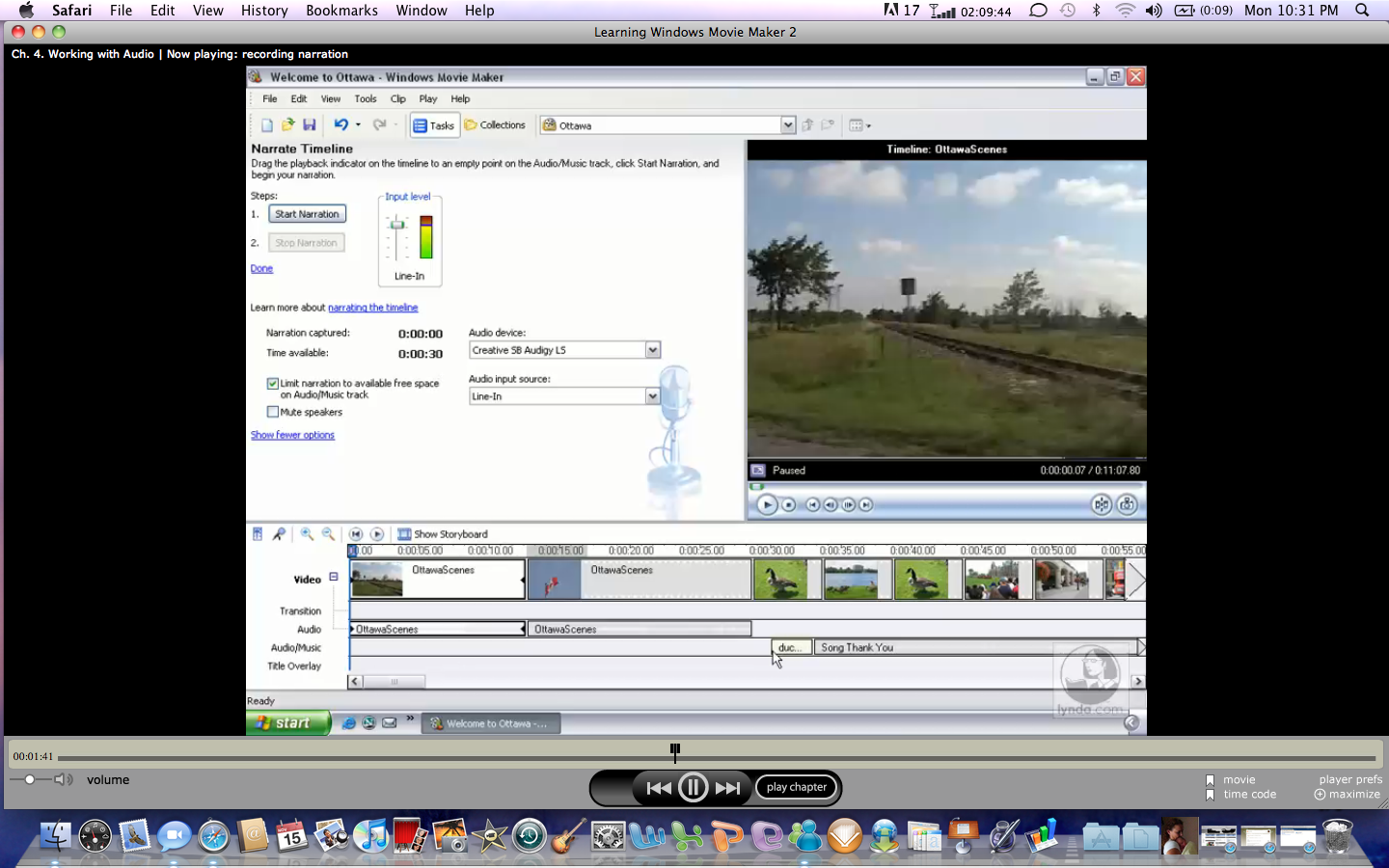
PE6_MovieMaker Audio and Narration

PE5_Movie Maker - Creating Titles and Overlays
 |
| Add Titles and Overlays |
PE4_Movie Maker
 |
| Welome to MovieMaker |
Often times when a product is free is it not as robust and somewhat limits your capabilities, but not MovieMaker. This tool is very robust and even the free version can meet all your video needs. MovieMaker allows you to import from your digital or video cameras, vcr, hard drive or cd. Once you have your pictures and or video clips uploaded to your hard drive, all you do is import into your MovieMaker project and now the editing can begin. You have options to to add video effects, titles, transitions, and background music to your projects. MovieMaker allows you to edit your individual clips by breaking them up into smaller clips and trimming your clips to add more precision to your video. Since we have access to flip cameras at school, my kids can use those to capture video at our sporting events instead of using our video recorders. With movie maker, they can come into class, upload the video footage and begin the editing process. This creates a dynamic of collecting video from multiple sources to save for our daily announcements for the school to view. Not to mention that they can work on video from home. Students can even add introduction slides to their video making their clips a more complete and finished product, making my job a lot easier. Once they have their video edited they can save the finished product to a movie file of which can be imported into pinnacle. So there you have it, Windows MovieMaker. A great video editing tool suitable for all you video needs.
Sunday, November 14, 2010
BP9_Zohodocs
 This weeks web 2.0 that I selected is Zoho.com. Zoho is a collaboration site that will manage all of your personal and business needs. Zoho products include, docs very similar to google docs. It has also has email, chat capabilities, a calendar and a planner. The chat will allow you to set a page background theme, and the docs will allow you to set up a watermark. So the tools within Zoho are fun to work with.
 Zoho collaboration includes in your own wiki, blog, personal and public forum.
Zoho business will allow you to virtually manage all your business needs from, meetings, recruiting, managing staff, invoices, keeping time and much much more. All of the tools can be shared with options for others to view, or edit documents. It is a great collaboration tool.
This is a really robust tool offering you many options on a personal and business needs.
The reason I picked this tool is because not only can you work from the Zoho website. At my school we have implemented a social networking tool for our students and Zoho docs is imbedded right into the tool. With Zoho docs, me and my students can create and share documents with one another. I like the fact that I can create a document, share it with my students. They can create their response to my document and save it to their digital locker for me to view and grade later. So Zoho is a tool within a tool. My students really like the fact that they can create a paper, have me view it before printing out a final copy. Also, this year, my district is really cutting back on our ability to print. Using Zoho documents for my students work gives them the opportunity to create it and save it or they can email me the zoho doc for grading. Really cuts down on printing. Also, students can share documents with one another and this is a great feature when they are creating working on projects.
Subscribe to:
Posts (Atom)