Popular Posts

Sunday, November 21, 2010

PE9_Google Presentations


Google presentation is the last of my google docs blog for this week. With google presentation, you have to option to create an online presentation just as you would if you were creating a power point using Office Suite. With google presentation, you have the option to add slides, with template options, change your slide background or create a presentation theme. You can also add text, images and video to really make your presentation a multimedia show. Just as you would with google docs, you have the option of keeping your presentation private or sharing it with users as your discretion. Google saves the presentation and it is always available for your use when on the go. Please give your thoughts on Google Presentations.

PE8_Googleforms/Surveys

Google forms opens to a spreadsheet allowing you to create forms and surveys. This is a great tool for creating surveys in that, once the users complete the survey, the survey owner can instantly review the results for discussions.
Google forms will allow its users to create surveys and communication documents to help you keep track of important data shared between users, just as we used in our Literature Reviews this month. The surveys are a great tool to use for collecting important data and reviewing that data at a later time. Google forms will compile the data and set it up in easy to read charts for the user to review. Google forms is great when for sharing, compiling and reviewing data.


PE7_Googledocs

Wk4__ETC_Final Video

Web 2.0 Technology and the Classroom

Monday, November 15, 2010

PE6_MovieMaker Audio and Narration

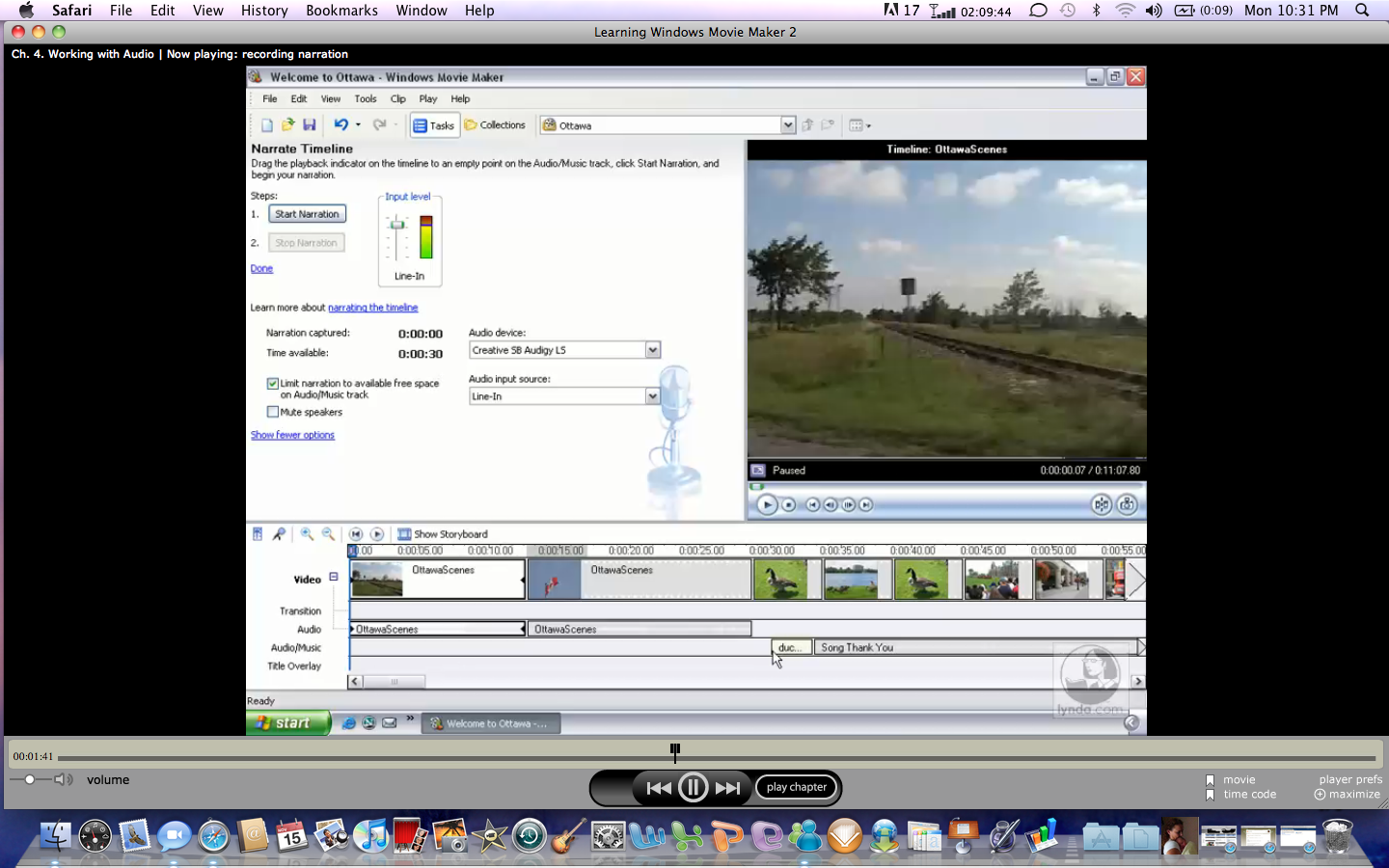
Another blog on MovieMaker. Well, this time I am going to be discussing adding sound so your video. MovieMaker gives you several options to adding audio to your projects. These include narration, background music, and sound effects. With narration, within MovieMaker, you just select narration and record your own voice using your line in function or your microphone. MovieMaker allows you also adjust the volume levels of your narration. With MovieMaker, you can also add background music or audio. This music can be adjusted with your narration to create a full quality video effect. You can also add sound effects and import your own to be used with your clips. Using MovieMaker is a great way to capture the attention of your audience as they anticipate what they will see or hear next, especially knowing that you are the one who created the video. MovieMaker can be saved in various formats to be uploaded to your video camera for playback on your big screen. Or you can save the project as an avi or mov file to be imported into another video format. So there you have it Windows MovieMaker.

PE5_Movie Maker - Creating Titles and Overlays

Add Titles and Overlays
With MovieMaker, you have the ability to add titles and overlays to your video. You can choose whether to add your titles to the beginning of the video as an introduction, before clips, simultaneously to appear with your clips; you can add animation to the titles, and you can add credits at the end of your video. With MovieMaker, I have not found too many things that I cannot do with regard to Pinnacle Studio that we currently use at my school. Before beginning this journey, I was somewhat intimidated with MovieMaker but now I am excited and giving that same excitement to my students. I enjoy changing the fonts and adding transitions to the my titles and captions. My students are beginning to really get the hang of if and spend countless hours now working to create masterpiece videos for school projects as well as for their families at home.

PE4_Movie Maker

Welome to MovieMaker
This week's tool I choose to use is Windows Movie Maker. As a teacher of video, I wanted to make sure that I am really teaching my students as many possibilities with video as possible. Currently, we create and edit our videos using Pinnacle Studio, which is a great video editing tool. But my students do not have access the tool from home. So since Movie Maker and is free and for the most part is already loaded on the computer, I thought this would be a great tool.

Often times when a product is free is it not as robust and somewhat limits your capabilities, but not MovieMaker. This tool is very robust and even the free version can meet all your video needs. MovieMaker allows you to import from your digital or video cameras, vcr, hard drive or cd. Once you have your pictures and or video clips uploaded to your hard drive, all you do is import into your MovieMaker project and now the editing can begin. You have options to to add video effects, titles, transitions, and background music to your projects. MovieMaker allows you to edit your individual clips by breaking them up into smaller clips and trimming your clips to add more precision to your video. Since we have access to flip cameras at school, my kids can use those to capture video at our sporting events instead of using our video recorders. With movie maker, they can come into class, upload the video footage and begin the editing process. This creates a dynamic of collecting video from multiple sources to save for our daily announcements for the school to view. Not to mention that they can work on video from home. Students can even add introduction slides to their video making their clips a more complete and finished product, making my job a lot easier. Once they have their video edited they can save the finished product to a movie file of which can be imported into pinnacle. So there you have it, Windows MovieMaker. A great video editing tool suitable for all you video needs.